
Guide
Connecting Claude to your apps
Add Claude plugins for Gmail, Google Drive, Slack, Notion and the other tools you use, so Claude can find things and do jobs in them without copying and pasting.
What you'll end up with
Claude linked to the apps you already work in, such as Gmail, Google Drive, Google Calendar, Slack, Notion or Canva. Ask it "what did the client say about the launch date?" and it searches your inbox and comes back with the answer and the email it came from, without you pasting anything in.
Claude does this with plugins. You add a plugin for an app, sign in to that app once, and Claude can then search it, read from it and, where the app allows it, do things in it, such as drafting a reply or adding a calendar event.
Who it's for, and what you need
Anyone who spends time copying text out of one app and into Claude, then copying the answer back.
You need:
- A Claude account. Plugins for your apps work on every plan, including Free.
- An account with the app you want to link, such as Google or Slack.
- About 10 minutes.
What it costs: nothing extra. UK prices for the paid plans are in Setting up Claude properly. On a Team or Enterprise plan, an owner has to switch a plugin on for the organisation before you can add it yourself.
Why it matters
Claude is only as useful as what it can see. Without plugins, it knows what you paste in and nothing else. With them, it can pull the brief from Drive, check the thread in Gmail and look at what's on your calendar next week, all in one request.
It only sees what your own account can see. If you can't open a file in Google Drive, Claude can't open it either.
The steps
1. Open Plugins
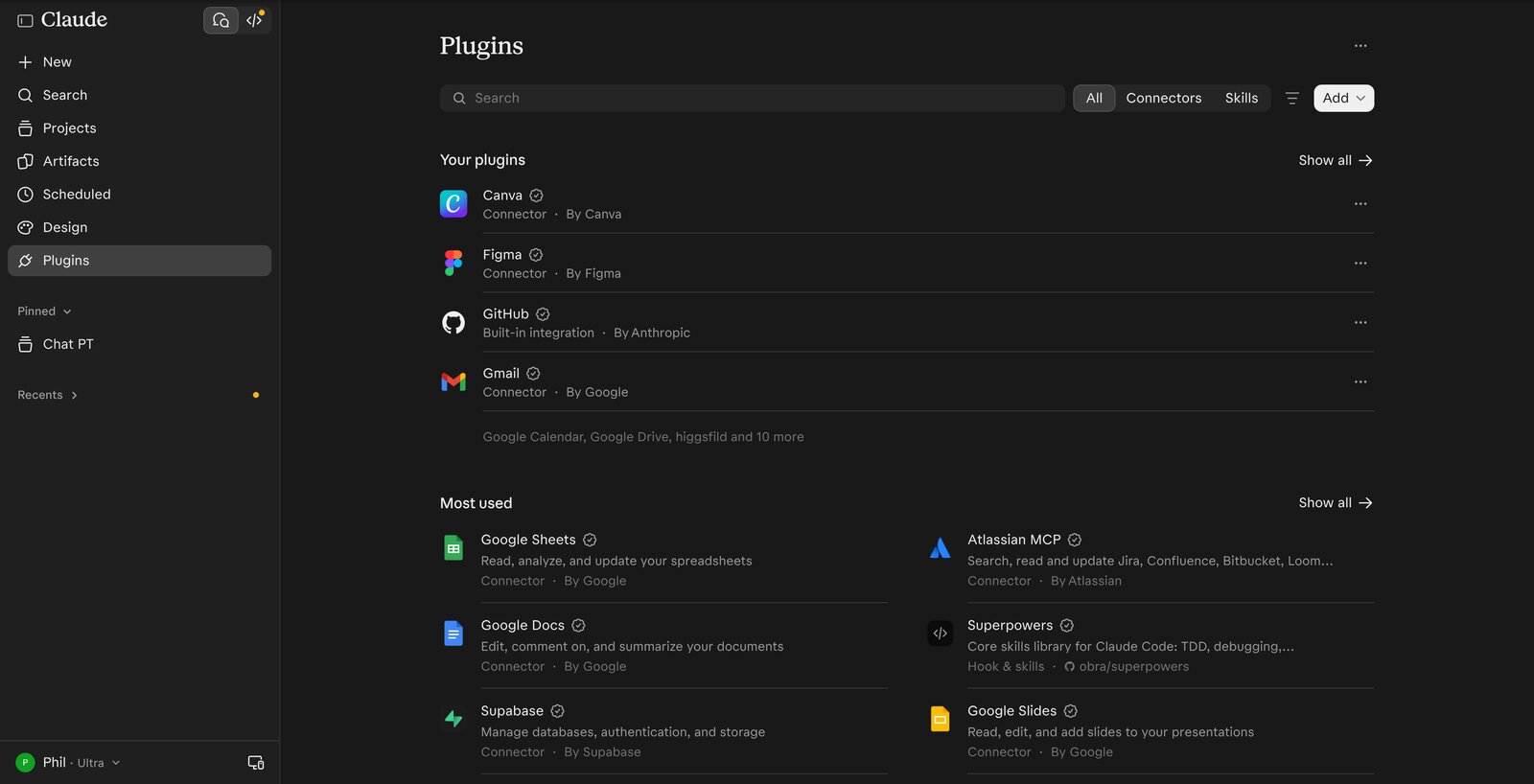
Click Plugins in Claude's sidebar. The page lists the plugins you've already added under Your plugins, with the rest of the directory below.
2. Find the app you want
Type the app's name into Search, or scroll through the directory. Start with the one you'd use most. For most people that's email, files or a calendar.
Click the plugin to open its page. It says what the plugin can do, including whether it can only read or can also make changes.
3. Add it and sign in
- Click Connect (on some plugins it says Install).
- A sign-in window opens for that app. Sign in with the account you use for work.
- Check what it's asking for access to, then approve it.
You're sent back to Claude, and the plugin now appears under Your plugins.
Google apps come as separate plugins: Gmail, Google Drive and Google Calendar each need adding on their own.
4. Use it in a chat
Start a new chat and ask for something that needs the app. Plain English is fine:
Find the last three emails from Sarah at Acme and tell me what she's waiting on from us.
You don't have to name the plugin. Claude brings in an app when your request needs it.
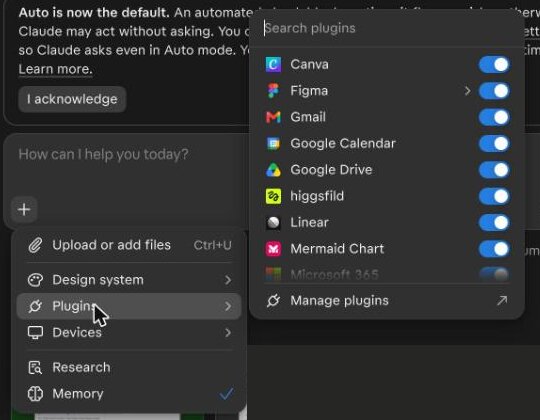
To check which plugins a chat can use, click + under the message box and hover over Plugins. Each one has a switch next to it. Turn off any you don't want in this chat.
5. Decide how often it checks with you
By default, Claude gets on with the job while an automatic check blocks anything risky. That suits most people.
If you'd like Claude to ask before it does something in a particular app, such as sending an email, open that plugin from Plugins and set that action to Always ask. You can also switch the whole chat to Manual, under the message box, so it asks before every action. That's a sensible setting for your first few days while you see how it works.
Things to try
Once a couple of apps are linked, try the jobs you'd normally do by hand:
- "What's on my calendar next week, and which meetings have no agenda?"
- "Find the latest version of the Acme proposal in Drive and summarise the pricing section."
- "Draft a reply to the last email from our accountant, answering her questions from the figures in the spreadsheet she sent."
- "Summarise what happened in the #projects Slack channel while I was off."
- "Pull together everything we've got on Acme from Gmail, Drive and Notion, then write a one-page briefing."
- "Make a Canva social post from this blog post."
Check it worked
- Click Plugins in the sidebar. The app should be listed under Your plugins.
- In a new chat, ask something only that app can answer, such as
What's the most recent email in my inbox?orWhat's on my calendar tomorrow? - Claude's reply should show it used the app (you'll see the plugin's name as it works) and give an answer you can check.
If it goes wrong
The app isn't in the directory. Try searching for it by another name. If it still isn't there, look for the Zapier plugin: it reaches thousands of other apps, though it takes a little longer to set up.
You can't add it on a work account. On Team and Enterprise plans, an owner has to add the plugin for your organisation first. Some plugin pages have a Request button that sends them the request.
Claude doesn't use the app. Click + under the message box, hover over Plugins and check it's switched on. Or name it in your request: "Using Gmail, find…".
It asks you to sign in again. Sign-ins sometimes expire. Open the plugin from Plugins and sign in again.
It's using the wrong account. Disconnect the plugin from its page in Plugins, then add it again and sign in with the right account.
Next steps
If you use ChatGPT as well, it has plugins too: Connecting ChatGPT to your apps.
If there's a dull job that means checking three apps and pasting the results into a fourth, it may be worth building properly. We build tools that do it.
The short version
- Click Plugins in Claude's sidebar.
- Find the app, open it and click Connect.
- Sign in and approve the access.
- Ask for what you want in a chat. Claude uses the app when the request needs it.
- Set actions you're wary of to Always ask.
Newsletter
One useful AI thing a week.
A short email on actually getting work done with AI. What we've tried, what worked, what didn't. No hype, unsubscribe whenever.