
Guide
Setting up Claude properly
Fifteen minutes on Claude: Instructions for Claude, memory, a client project with files, skills instead of styles, and the privacy toggle for client work.
What you'll end up with
Claude that already knows how you work, a project holding one client's brief and files, skills ready if you used to rely on styles, and model-improvement switched off for client work on a personal account.
Who it's for, and what you need
People who write, plan or brief for a living and want Claude to stop sounding like a generic assistant. If you already prefer Claude for long writing, this is the setup that makes that preference stick. If you're still on ChatGPT for everything, do that guide first or in parallel — the ideas are the same, the menus differ.
You need:
- A Claude account at claude.ai (Free works; Pro is nicer if you live in it)
- About 15 minutes on the web or desktop app
- One real job to attach a project to (brief, brand note, two past examples)
What it costs: Free includes memory, connectors on supported plans, and up to five projects. On the UK upgrade page (claude.ai/upgrade), Claude Pro is £15/month + tax, or £13/month when billed annually (£150 + tax). The public marketing page still shows about $20/month in USD. You do not need Team or Enterprise for this guide.
Why it matters
Claude is only as good as the context you give it. Without instructions it writes competent, forgettable prose. Without a project it forgets the brief the moment you open a new chat. Without the privacy toggle, client copy on a personal Free/Pro/Max account can be eligible for model improvement.
We use Claude heavily for writing and for agent work. The difference between "useful" and "generic" is almost never the model version — it's whether the standing instructions, the project files and the memory are set up before you ask for the draft.
The steps
1. Turn off model improvement for client work
On Claude Free, Pro and Max, Anthropic can use chats and coding sessions to improve models if the privacy setting is on. Turn it off before you paste client material into a personal account. Team and Enterprise are off for training by default.
- Click your name / initials (lower left on web).
- Open Settings.
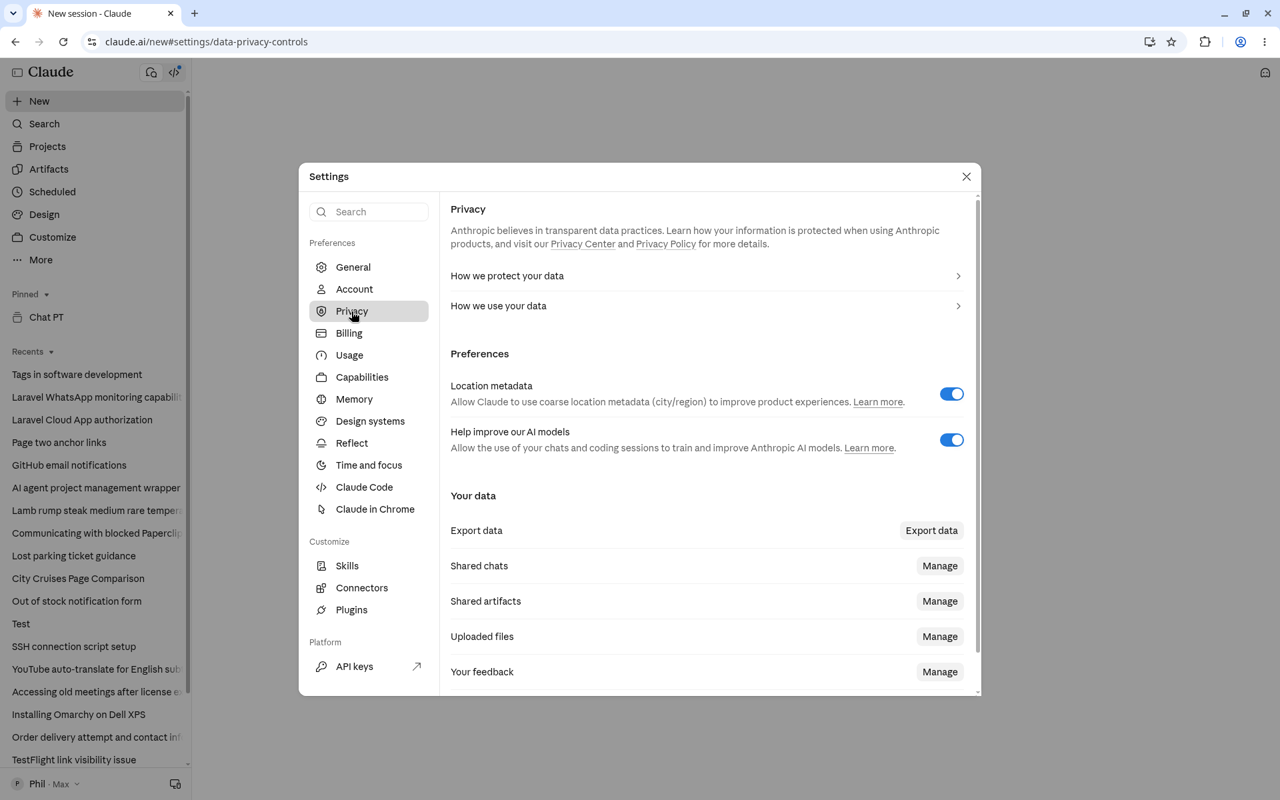
- Open Privacy.
- Under Help improve our AI models, turn it off.
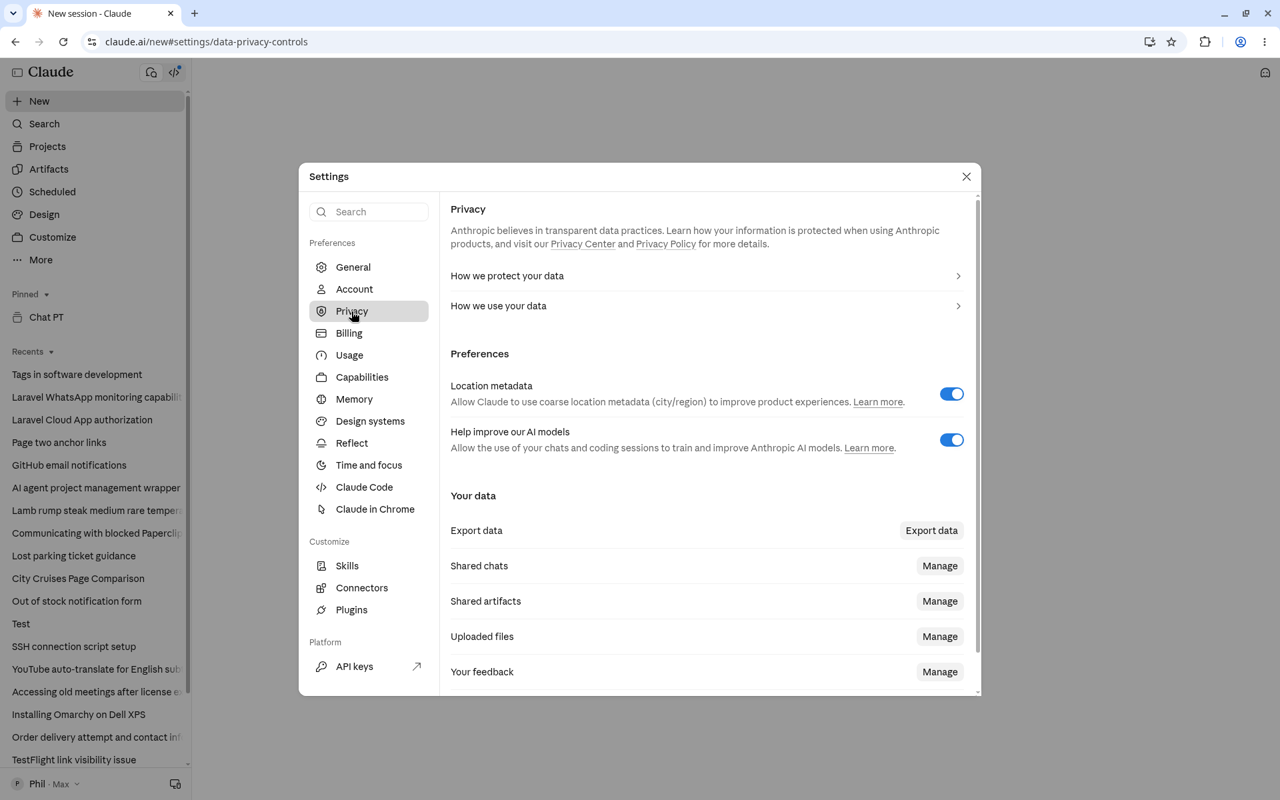
New chats after this are not used for future model training. Incognito chats are never used for training, even if the toggle is on — useful for one-offs, not a replacement for the account setting if you regularly do client work.
2. Set Instructions for Claude
This replaced the old profile "preferences" for account-wide guidance. Anything here applies to every conversation unless a project overrides it.
- Initials → Settings → Account.
- Open Instructions for Claude.
- Write standing rules, not a novel. Example:
I run a small Brighton product studio. British English. Clear, specific, no corporate filler.
Never invent facts, figures, quotes or client names — use [CHECK] when something is missing.
When drafting, match the tone in the project files. Prefer short paragraphs over bullet spam unless I ask for a list.
If the brief is ambiguous, ask one question, then draft.
Avoid words like leverage, synergies, solutions, enterprise-grade.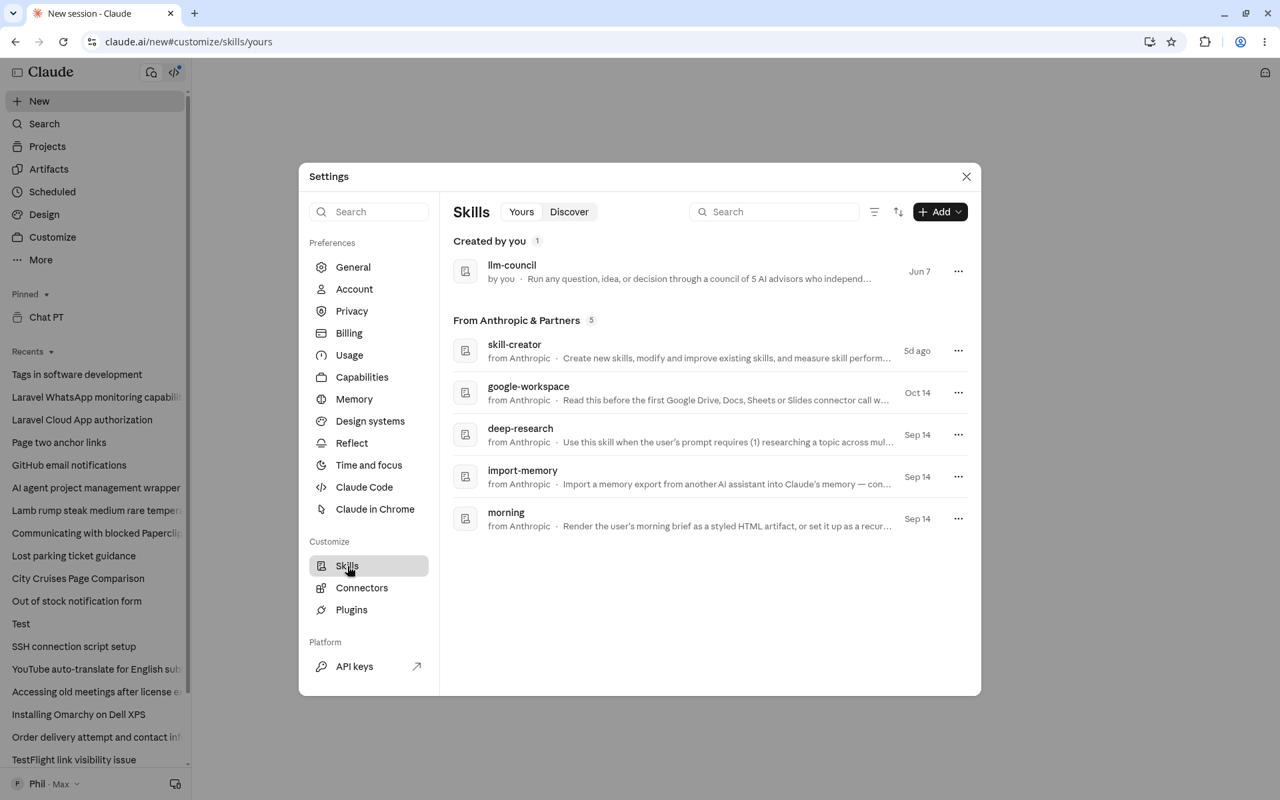
If you previously used Global instructions in Claude Cowork, they should already sit here — open the setting and make sure it still says what you want.
3. Memory: keep it useful, not nosy
Memory is on by default for Free, Pro and Max on web, desktop and mobile. Claude builds a picture across chats so you don't re-introduce yourself every morning.
- Open Settings → Memory.
- Review what it has stored (search and reference chats, generate memory from chats, sensitive topics, import/export). Edit or delete anything wrong, sensitive or client-specific that shouldn't be global.
- For facts that should stick everywhere (your name, city, house style), either leave them in memory or put them in Instructions for Claude — instructions are more predictable.
Inside a project: each project has its own memory. Keep client-specific detail in project instructions and knowledge rather than global memory so one client's chats don't colour another. (Some accounts previously showed a Use account memory toggle on the project page — if yours still has it, turn it off for client isolation.)
You can also turn Memory off for a single chat from the + menu before the first message if you need a clean slate.
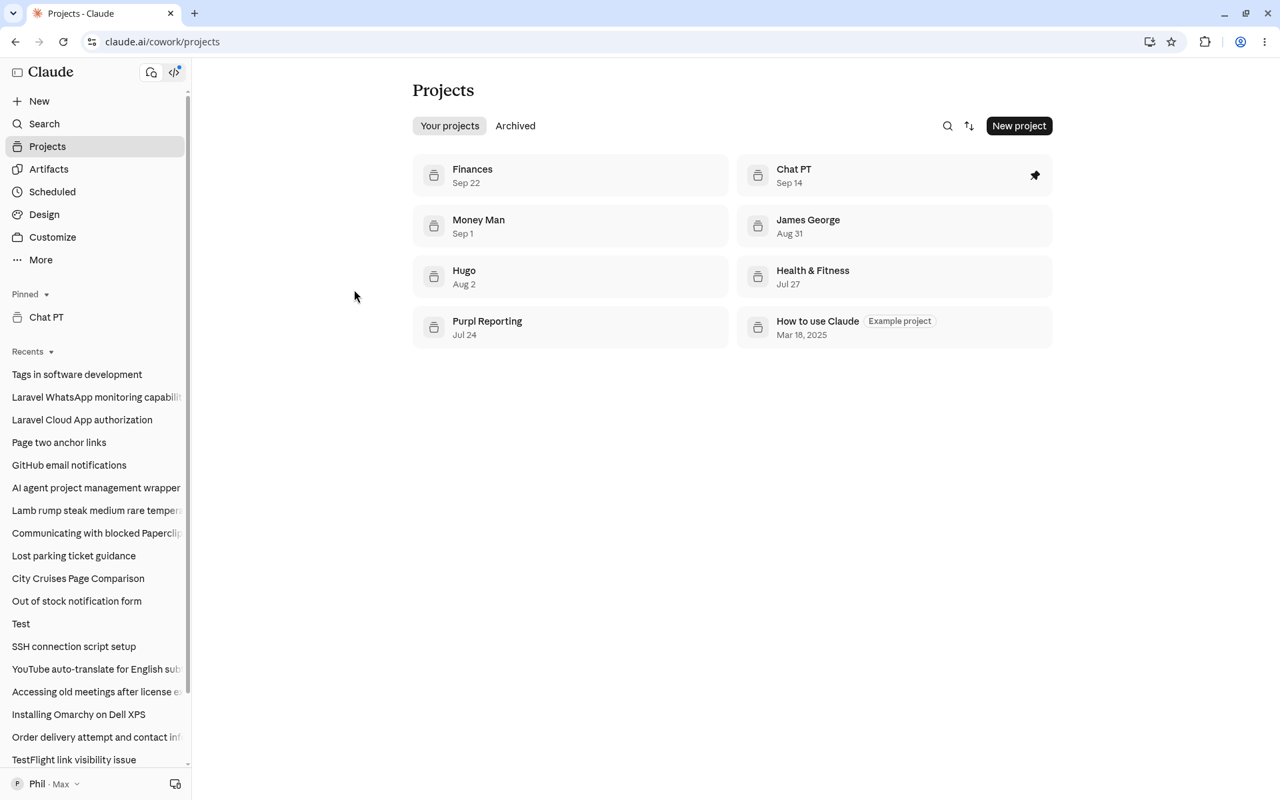
4. Make a project with the brief and files
Projects are available to everyone, including Free (max five). Paid plans remove that cap and handle larger knowledge bases more gracefully (RAG kicks in automatically when the knowledge base gets big).
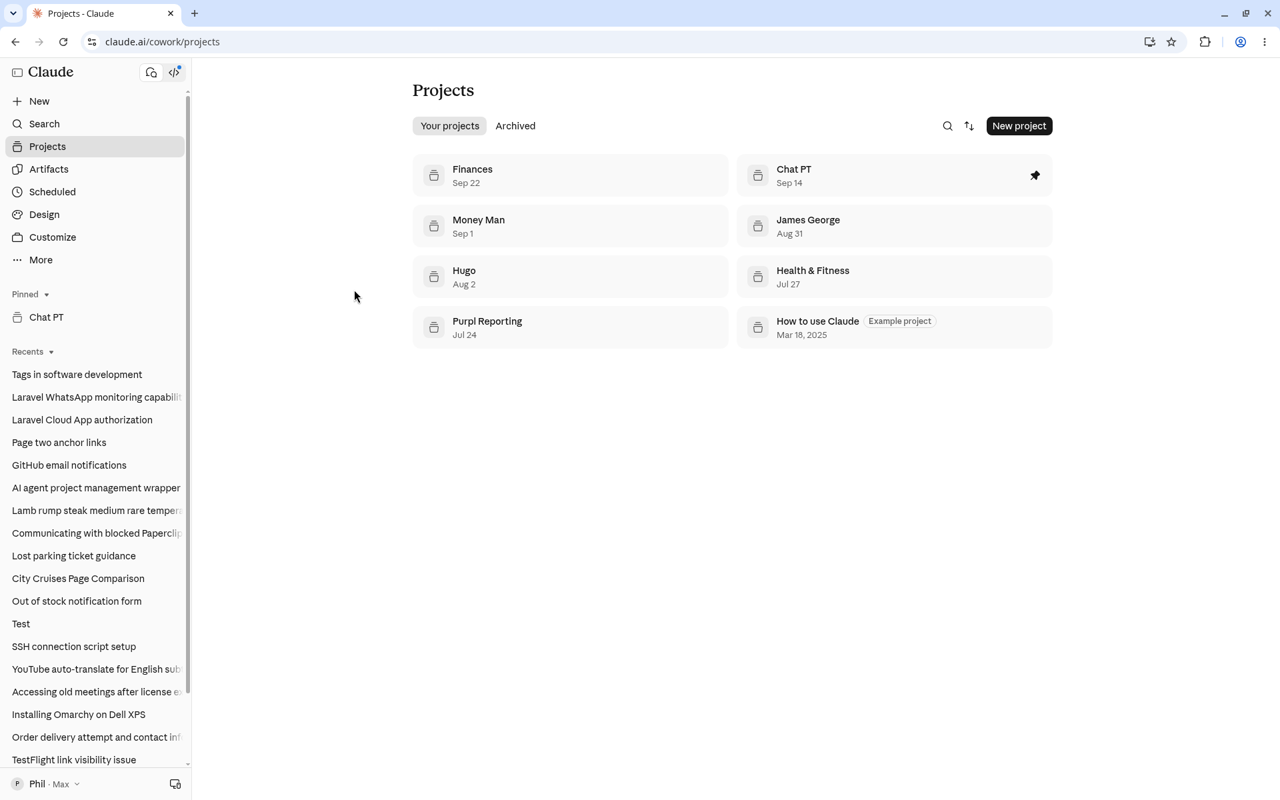
- Open Projects in the left sidebar, or go to claude.ai/projects.
- Click + New Project.
- Name it and add a short description for you (Claude does not read the name/description as instructions — put real guidance in project instructions).
- Click Set project instructions and paste something like:
Client: [name]. Goal: [one sentence]. Audience: [who].
Tone: [plain / warm / formal]. British English.
Use only facts from the project knowledge. Missing numbers → [CHECK].
Deliver paste-ready drafts (emails, web copy, proposals), not strategy essays unless I ask.- In the project knowledge panel, click + and upload the brief, brand guide, two strong past pieces, maybe a competitor page saved as PDF. Everything in knowledge is available across chats in this project. Context does not automatically share between chats unless it's in the knowledge base — so put the durable stuff in knowledge, not only in one old thread.
- Start chats from inside the project.
A good first message inside the new project:
Read the project knowledge. Summarise the brief in five bullets, list any gaps as [CHECK], then draft a 120-word homepage intro in the client's voice.If the summary invents a product you didn't upload, the knowledge files aren't attached — fix that before you trust any draft.
Trade-off: Free's five-project limit means you archive or delete finished jobs. That's healthy — old clients don't need to live forever in the sidebar.
5. Skills (styles have moved here)
Anthropic is moving styles into skills. Custom styles migrate automatically and arrive disabled — turn on the ones you still want under Customize → Skills (Capabilities notes that Skills have moved there). Default styles such as Concise, Explanatory and Formal go away; Learning survives as a skill you can install. Until migration finishes on your account you may still see a styles menu alongside skills.
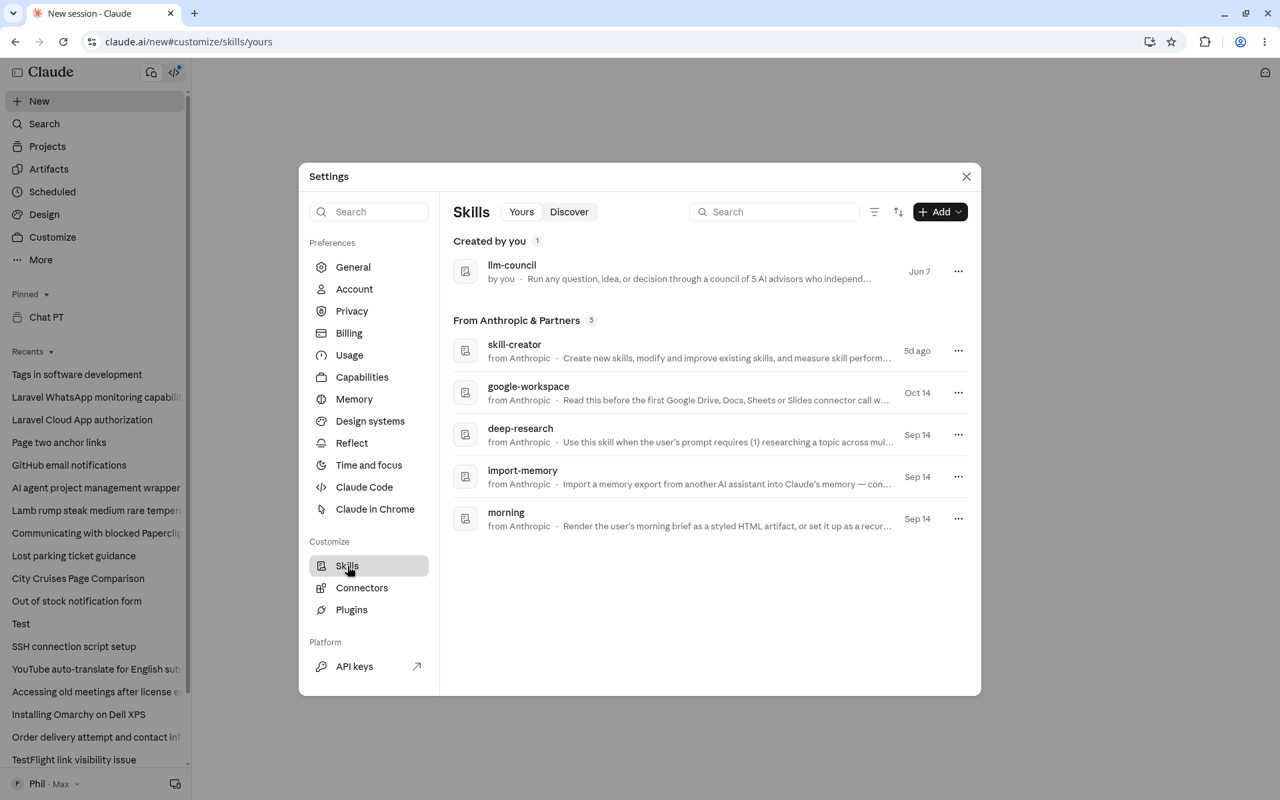
What to use when:
- Instructions for Claude — rules for every chat (tone, no invented facts, British English).
- Project instructions + knowledge — one client or job.
- Skills — repeatable behaviours you switch on when needed (house style for proposals, "write like our case studies", spreadsheet workflows). Skills need code execution enabled: Settings → Capabilities (or ask an Owner on Team/Enterprise). Free accounts list Skills on the pricing page — turn code execution on before relying on custom skills.
To use a skill in a chat, describe the task (Claude may load a matching skill) or type / and pick it. Migrated styles often become slash commands like /{name}-style.
You can skip skills on day one. Instructions + one project already fix most of the "generic Claude" problem.
If you'd rather not manage skills yet, put the same tone rules into Instructions for Claude. Skills shine when the behaviour is occasional ("format this as our proposal template") rather than always-on ("never invent numbers"). Always-on rules belong in instructions; occasional workflows belong in skills.
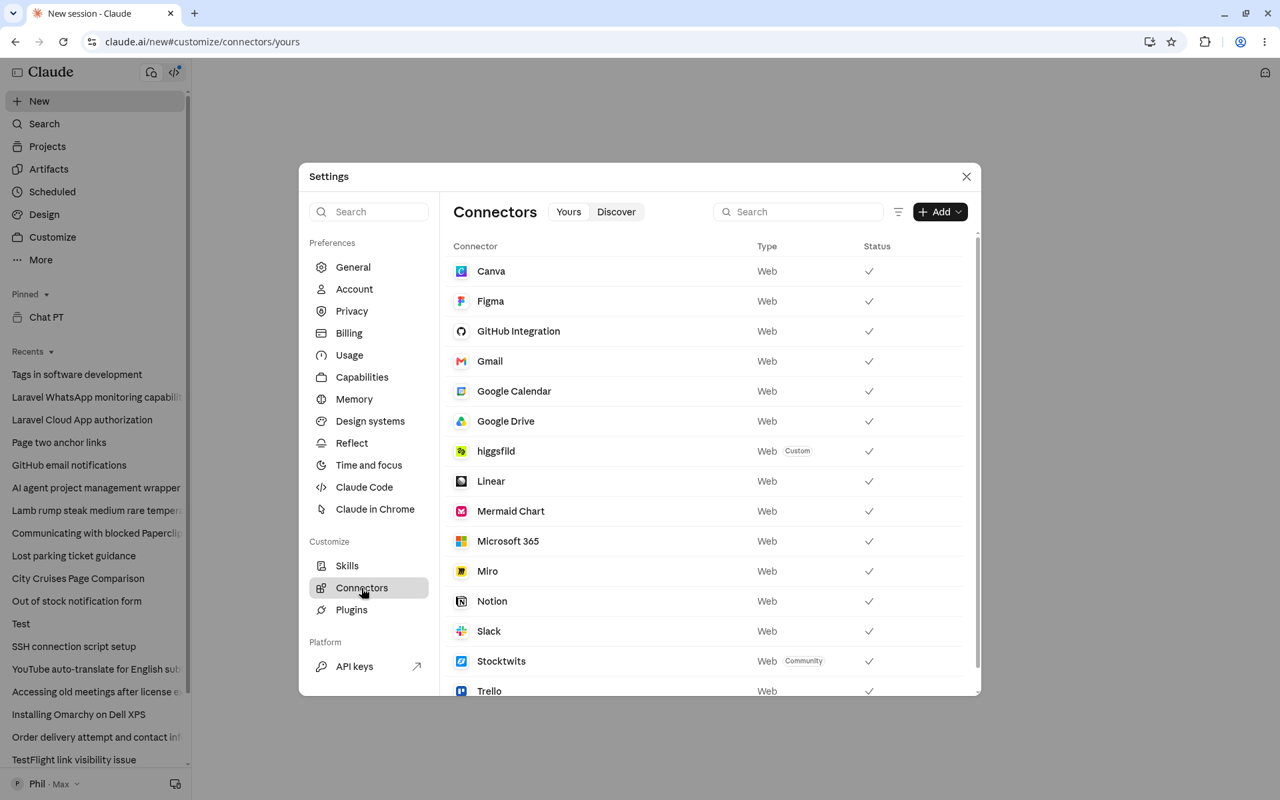
6. Optional: connectors
Claude can connect to tools such as Google Workspace (Gmail, Calendar, Drive), GitHub, Slack, Notion and others via Customize → Connectors, including on Free where supported. Connect only what you need, and remember: raw connector content generally isn't used for training, but anything you paste into the chat still follows your privacy setting. What's listed varies by plan — open Connectors on your account and connect only what you actually use.
Check it worked
- New chat outside a project:
In four sentences, how should you write for me?— should match Instructions for Claude. What do you remember about me?— tidy anything that shouldn't be there.- Inside the client project:
Using only project knowledge, summarise the brief in five bullets.— should cite the files, not invent a different brief. - Settings → Privacy — model improvement still off.
- If you migrated a style: Customize → Skills — enable it, invoke with
/, confirm the tone shifts.
If it goes wrong
It ignores the project brief. You probably put the guidance in the project description (Claude doesn't use that) instead of Set project instructions, or the files never landed in project knowledge. Fix both, start a new chat inside the project.
Free plan won't make a sixth project. Archive or delete an old one first. Archiving keeps contents; you must unarchive before you can delete.
Skills missing or greyed out. Turn on code execution under Settings → Capabilities. On Team/Enterprise, an Owner may need to enable it.
Styles vanished / tone broken. Check Customize → Skills for migrated custom styles (they're off by default). Or copy the tone rules into Instructions for Claude so every chat gets them without a slash command.
It still invents statistics. Add the [CHECK] rule to both account instructions and the project instructions, and put real numbers in the knowledge files. Models will still occasionally bluff — the rule makes the bluffs obvious.
Next steps
If ChatGPT is still your other window, mirror this setup there: Setting up ChatGPT properly. Same ideas — instructions, memory, projects, privacy — different labels.
When you want this baked into how your studio ships sites and products, that's Shape, Build and Grow. Or get the short weekly version in the newsletter: one practical AI thing, no tool-of-the-week theatre.
10-minute checklist
- Settings → Privacy → turn Help improve our AI models off.
- Settings → Account → Instructions for Claude → who you are + how to write + no invented facts.
- Ask what it remembers → delete client leftovers from global memory.
- Projects → + New Project → project instructions + upload brief/examples → keep client detail in the project, not global memory.
- Test outside ("how should you write?") and inside ("summarise from project knowledge").
- Customize → Skills — enable any migrated styles you still want; skip the rest until you have a repeatable workflow worth encoding.