
Guide
Setting up ChatGPT properly
Fifteen minutes to stop ChatGPT treating every chat like a stranger: instructions, memory, a client project, and the privacy toggle that matters.
What you'll end up with
ChatGPT that already knows who you are, how you write, and which client you're working on — plus the training setting switched off so client work in a personal account isn't used to improve OpenAI's models. You'll also have one project with a brief and a couple of files ready to use.
Who it's for, and what you need
Anyone who uses ChatGPT for real work and keeps re-explaining the same context. PR people, consultants, founders, agency folk — if you've ever typed "I'm a [job] in [city], write like this…" for the third time that week, this is for you.
You need:
- A ChatGPT account (Free is enough for the core setup; Plus makes projects and memory more useful day to day)
- About 15 minutes on the web app at chatgpt.com (desktop is clearer than phone for settings)
- One real client or piece of work to hang a project on — a short brief, a brand note, or a couple of past examples
What it costs: Free covers custom instructions, memory (limited), and projects (with a lower file limit). OpenAI lists ChatGPT Plus at $20/month on the pricing page and in-app upgrade modal — that's the figure UK accounts on USD billing see too. A separate UK £ checkout amount didn't appear from a signed-in Pro account already billed in USD. You do not need Business or Enterprise for this guide.
Why it matters
Most people use ChatGPT like a search box: ask, get an answer, close the tab. Next time it has no idea you run a studio in Brighton, that your clients hate exclamation marks, or who "Sarah from the council" is. So every reply starts generic, and you spend the first five minutes of every chat re-teaching it.
The fix isn't a cleverer prompt. It's the settings most people never open: who you are, how you want replies written, what it should remember, and a project that holds one client's files in one place. Fifteen minutes of setup beats years of repeating yourself.
The steps
1. Turn off training for client work
Do this first if anything confidential goes into ChatGPT on a personal Free, Go, Plus or Pro account. On those plans, OpenAI can use your chats to improve models unless you opt out. Business, Enterprise, Edu and Healthcare workspaces are off by default.
- Open your account menu (bottom-left or profile icon).
- Select Settings.
- Select Data controls.
- Find Improve the model for everyone and turn it off. Confirm if asked.
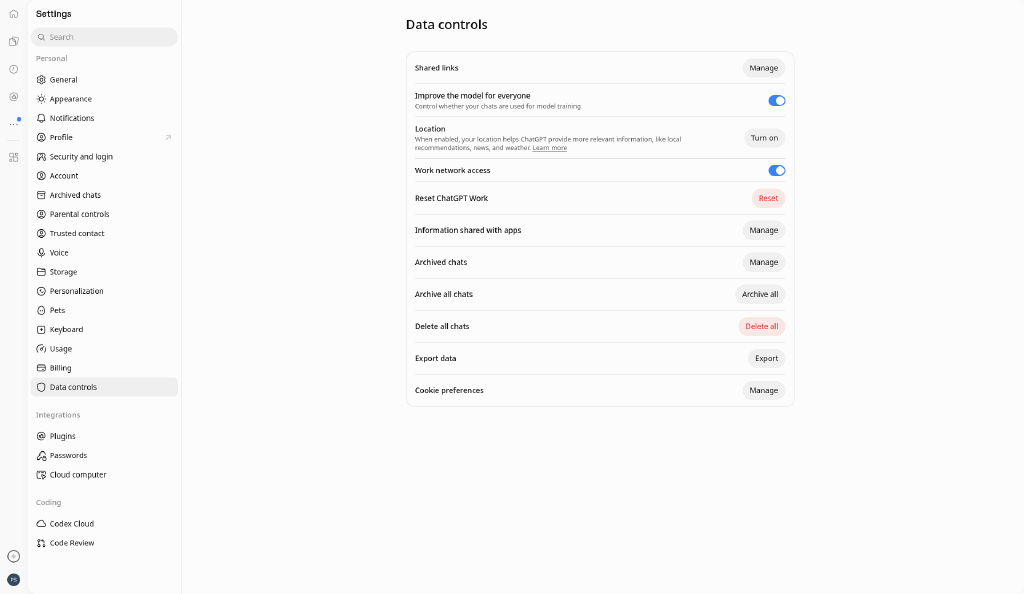
Your chat history stays. New conversations after this change are not used to train OpenAI's models.
For one-off sensitive chats you can also use Temporary chat, which isn't used for training and doesn't create memories — but Temporary chat isn't a substitute for switching the account setting off if you regularly paste client work.
2. Tell it who you are and how you write
Custom instructions are the standing brief for every new chat. Stable preferences go here; the specific task stays in the prompt.
- Open Settings → Personalization.
- Make sure Enable customization is on.
- Open Custom instructions — on current accounts this shows as rows for ChatGPT and Codex rather than the older two-box layout.
- Paste something concrete. Adapt this:
Who I am: I run a small Brighton studio (amillionmonkeys). We build websites and apps for clients. I write and review copy, briefs and proposals most days.

How to reply:
- British English. Clear, short sentences. No corporate filler.
- Don't invent facts, figures, client names or quotes. If you need one, write [CHECK].
- Prefer plain words: built/made/fixed/shipped over leverage/synergies/solutions.
- Ask one clarifying question when the brief is vague, then draft.
- When writing for a client, match their tone from the project files — not mine.
Free and Go accounts can save up to about 1,500 characters; Plus and above get about 5,000. Keep it short and specific. Update it when your role or style changes.
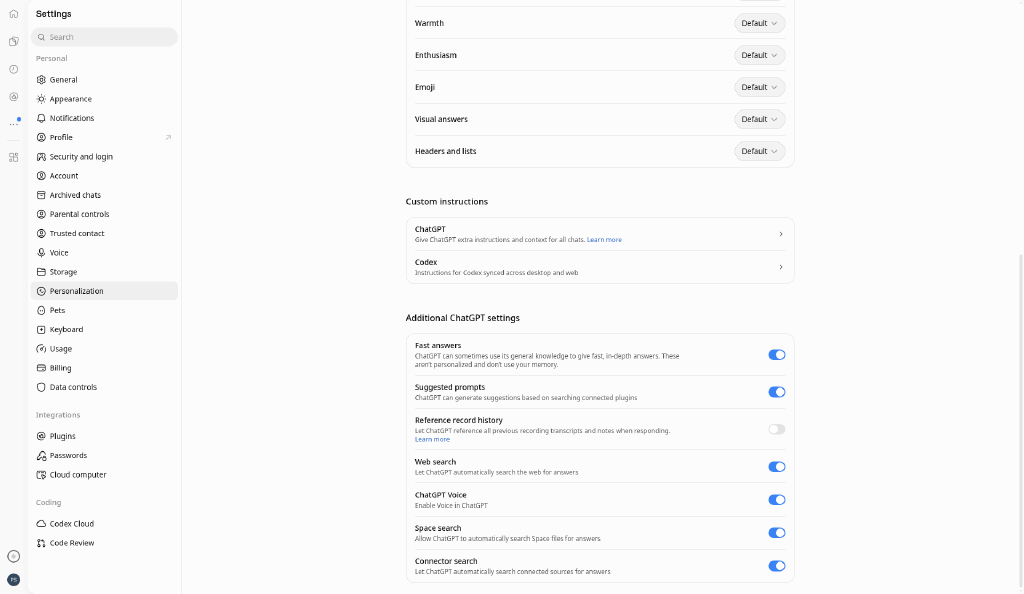
Worth putting in instructions (pick what fits):
- Role and location in one line
- British vs American English
- "Don't invent facts — use [CHECK]"
- Preferred output shape (paste-ready draft vs options vs bullets)
- Things you never want (emoji, exclamation marks, "I'd be happy to help")
Leave out: passwords, API keys, personal addresses, and anything that would be awkward if a plugin vendor ever saw it. Custom instructions can be shared with third-party plugins you connect.
3. Switch memory on, then clean it
Memory lets ChatGPT keep useful facts across chats so you don't repeat them. It is not the same as custom instructions: instructions are rules you wrote; memory is what it picked up (or you asked it to remember).
- Still in Settings → Personalization, open Memory.
- Turn on Enable memory if it isn't already. (Some older layouts showed separate Reference saved memories and Reference chat history toggles — if you still see those, turn both on for everyday use.)
- Ask in a normal chat:
What do you remember about me? - Delete anything wrong, stale or too personal. You can say
Forget that I…or remove items from the Memory settings screen. - Add a few facts worth keeping:
Remember that I work in British English and prefer drafts without exclamation marks.
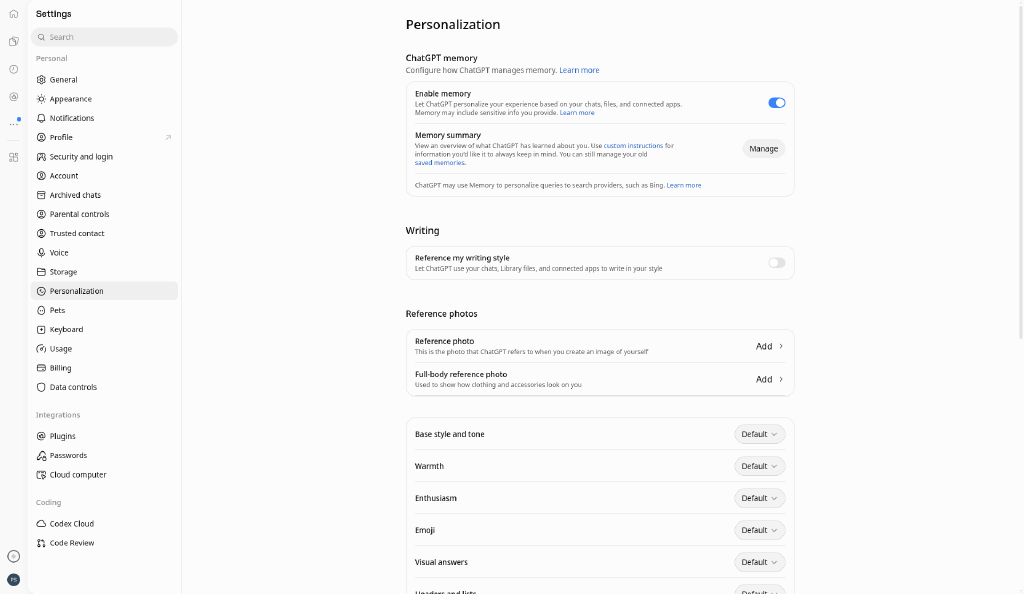
Trade-off: memory makes ChatGPT more useful and also more likely to drag last month's client into this month's chat. For client work, keep sensitive detail in a project (next step), not in global memory. Prefer project-only memory on client projects.
4. Make one project for a real client
A project is a folder of chats, files and instructions for one piece of work. Project instructions override your global custom instructions inside that project — which is what you want when Client A and Client B sound nothing alike.
- In the sidebar, select New project.
- Name it after the client or job (
Acme rebrand,Q4 board pack), pick an icon/colour if you like. - Open the project → ••• → Project settings.
- Add project instructions, for example:
This project is for [Client]. Audience: [who]. Tone: [plain / formal / warm].
Always use British English. Never invent metrics — use [CHECK].
Pull brand language from the uploaded files before inventing phrasing.
When I ask for an email or proposal, give me something I can paste, not a lecture about strategy.- Upload a short brief, brand guidelines, two good past examples, or a competitor note. Free accounts get about 5 files per project; Go/Plus about 25; higher plans about 40. If an upload fails, check Plans and limits for your plan's file cap.
- When you create a project, the dialog includes a Default memory dropdown. Prefer Project-only memory (or the equivalent option) for client work so chats here don't leak into other chats (and vice versa). Save. Changes can take a little while to apply. If that control is missing on your plan, use a clearly named project and keep secrets out of global memory.
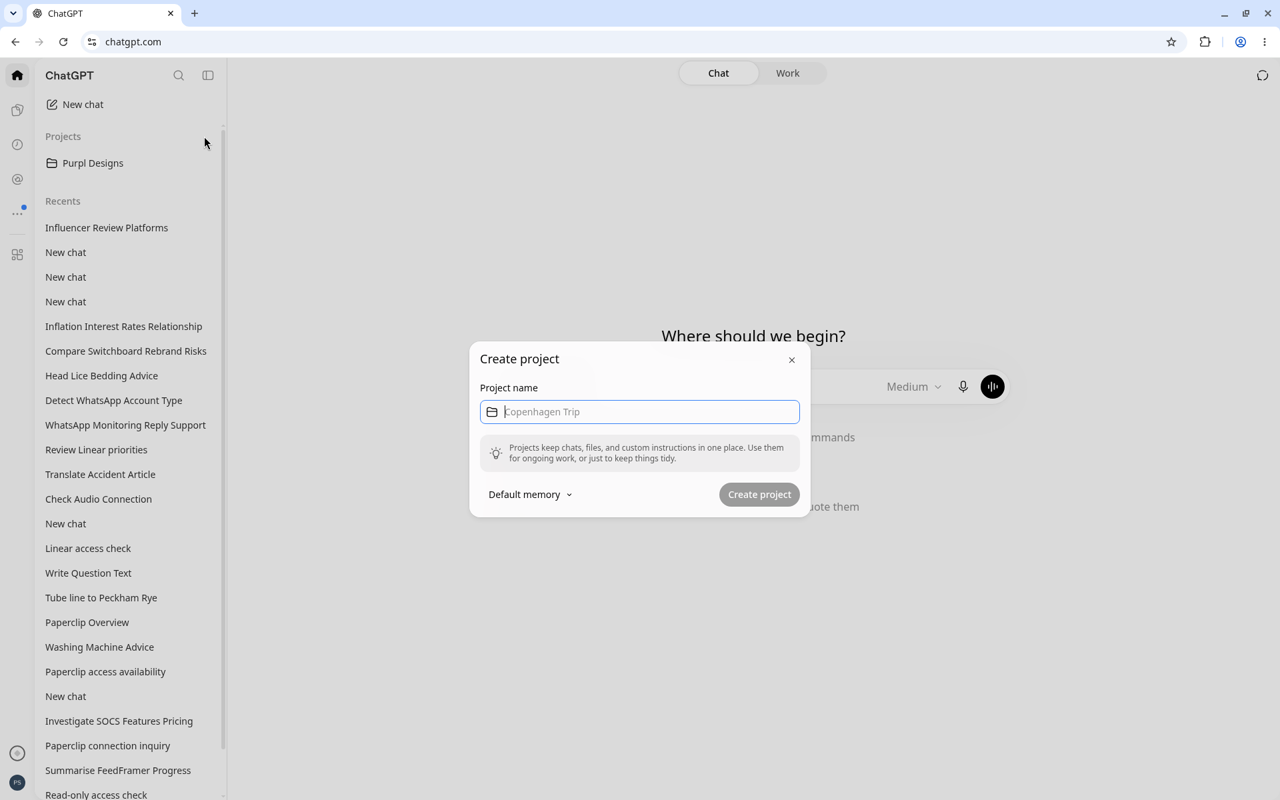
Start new chats inside that project. Don't paste the whole brief into a fresh sidebar chat and wonder why it forgot the brand voice.
What to upload (and what not to): a one-page brief, tone-of-voice notes, two pieces of copy you're proud of, maybe a competitor page saved as PDF. Skip full email archives and anything with other people's personal data unless you genuinely need it for the task. Projects are convenient, not a document-management system — keep the set small enough that you'd notice if the wrong file was in there.
5. Optional: plugins and apps (and the GPT retirement)
Connected apps (Gmail, Drive, Slack and so on) live under Settings → Plugins (some older mobile builds still say Apps). Install a plugin, connect the account, and only approve the access you actually need.
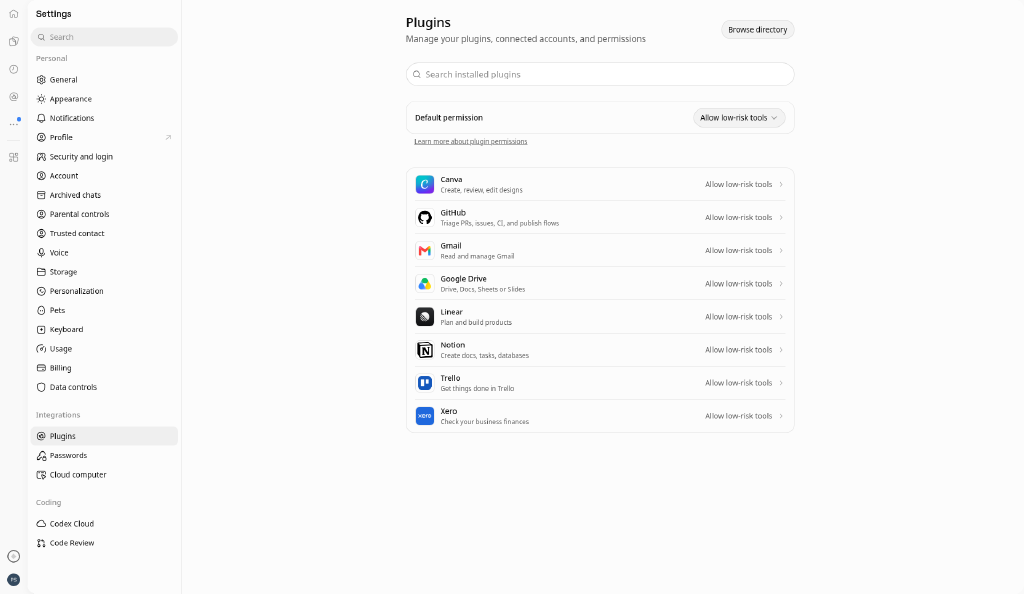
UK / Europe note: Availability of plugins can vary by plan and region. OpenAI has previously limited some connectors for personal accounts in the EEA, Switzerland and the UK, though Gmail and others do appear on some UK personal accounts. Open Settings → Plugins on your own account and believe what you see there over any blog.
Custom GPTs are being retired: new GPT creation is planned to end 26 Oct 2026, with existing GPTs usable until 11 Dec 2026 (later for some Enterprise deferrals). If you rely on a custom GPT, migrate it to a plugin from My GPTs → Migrate to plugin when that option appears, or rebuild the workflow as a project plus instructions. Don't build new workflows on custom GPTs now.
You do not need plugins for the core setup in this guide.
Check it worked
Paste this in a fresh chat outside any project:
Without me repeating myself: who am I, how should you write, and what's one thing you must never invent?Then:
- Open a new chat outside any project. Ask:
In one short paragraph, who am I and how should you write for me?It should reflect your custom instructions without you re-pasting them. - Ask:
What do you remember about me?Confirm the list looks right, then ask it to forget one test fact and check it's gone. - Open your client project, start a chat, and ask:
Summarise the brief in five bullets using only the project files.It should use the uploaded material, not invent a different company. - Confirm Improve the model for everyone is still off under Data controls.
If those four hold, the setup is doing its job.
If it goes wrong
Replies still sound like a LinkedIn bot. Custom instructions may be off, empty, or overridden by a project. Check Enable customization is on, and that you're not inside a project with conflicting project instructions.
It mixes Client A into Client B. Global memory is leaking across work. Set the client project to project-only memory, delete cross-client memories, and keep client facts in project files/instructions instead of "Remember that…".
Can't find Personalization / Data controls. You're probably on the mobile app's older menu. Use the web app, or open Settings from your profile icon and look for Personalization and Data controls there. Workspace admins on Business/Enterprise can also hide some toggles.
Upload limit hit. Remove old files, merge PDFs, or split into two projects. Free is capped at roughly five files per project.
Gmail / Drive missing under Plugins. Likely plan or region limits (especially UK personal accounts). Paste the email or upload the file into the project instead — slower, but it works everywhere.
Next steps
Once this feels natural, set up the same pattern in Claude — projects and instructions work in a similar shape, with skills instead of the old "styles". We wrote that walkthrough here: Setting up Claude properly.
If you'd rather we built the AI bits into how your studio actually ships work — Shape, Build or Grow — have a look at web development. Or stay on the weekly email: one useful AI thing a week, no hype.
10-minute checklist
- Settings → Data controls → turn Improve the model for everyone off.
- Settings → Personalization → enable customization → paste who you are and how you write.
- Personalization → Memory → on → ask what it remembers → delete junk.
- New project for one client → project instructions + 2–3 files → project-only memory.
- Test outside the project ("who am I?") and inside it ("summarise the brief from the files").
- Skip plugins until the basics work. If you used custom GPTs, plan the migrate-to-plugin step before Dec 2026.