
Guide
Connecting ChatGPT to your apps
Install ChatGPT plugins for Gmail, Google Drive, Slack, Canva and the other tools you use, so ChatGPT can find things and do jobs in them for you.
What you'll end up with
ChatGPT connected to the apps you already work in, such as Gmail, Google Drive, Google Calendar, Slack, Canva or Xero. Ask "what did the client say about the launch date?" and it searches your inbox and comes back with the answer, without you pasting anything in.
In ChatGPT these are called plugins. A plugin links ChatGPT to an app you sign in to once. Some also come with ready-made instructions for jobs in that app, such as summarising a Slack channel or tidying a Google Sheet.
Who it's for, and what you need
Anyone who spends time copying text out of one app and into ChatGPT, then copying the answer back.
You need:
- A ChatGPT account. The plugin directory is open on every plan, but which plugins you can install depends on your plan, your region and, on a work account, what your administrator allows.
- An account with the app you want to connect, such as Google or Slack.
- About 10 minutes.
What it costs: most plugins cost nothing on top of your ChatGPT plan, although the app itself may need its own subscription (Xero, for example). UK prices for ChatGPT are in Setting up ChatGPT properly.
Why it matters
ChatGPT is only as useful as what it can see. Without plugins, it knows what you paste in and nothing else. With them, it can pull the brief from Drive, check the thread in Gmail and look at your calendar for next week, all in one request.
It only sees what your own account can see. If you can't open a file in Google Drive, ChatGPT can't open it either.
The steps
1. Open the plugin directory
Click Plugins in ChatGPT's sidebar. You can also get there from a chat: click Plugins under the message box, then Connect plugins and Browse all plugins.
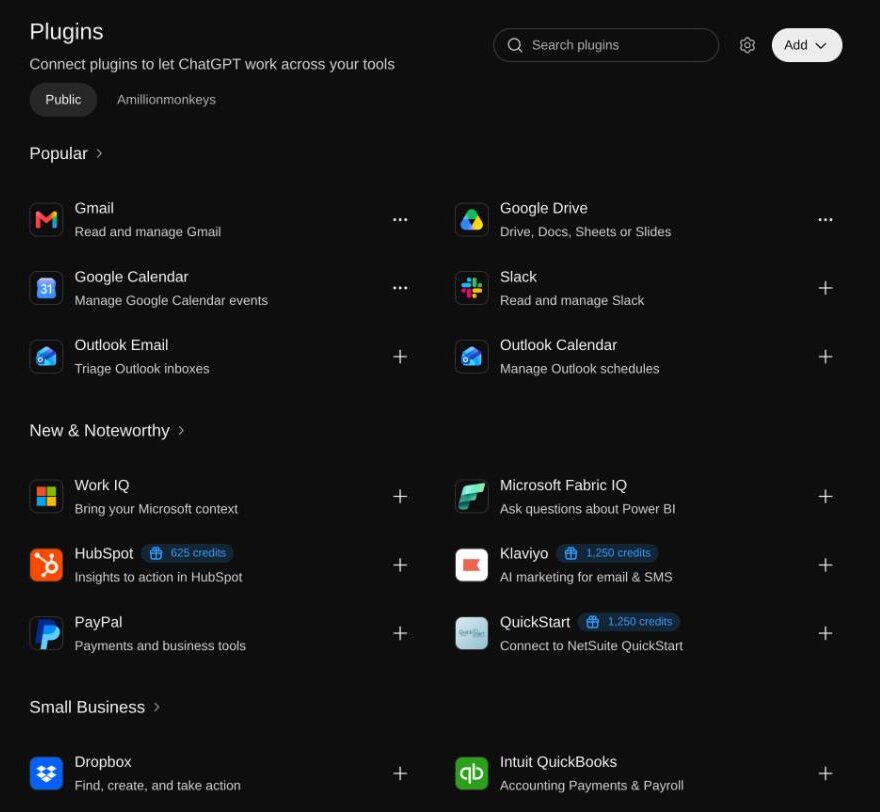
Popular apps are at the top. Use Search plugins if the one you want isn't there.
2. Install a plugin
- Click the plugin to open its page. It lists what the plugin can do and which apps it connects to.
- Click Install plugin.
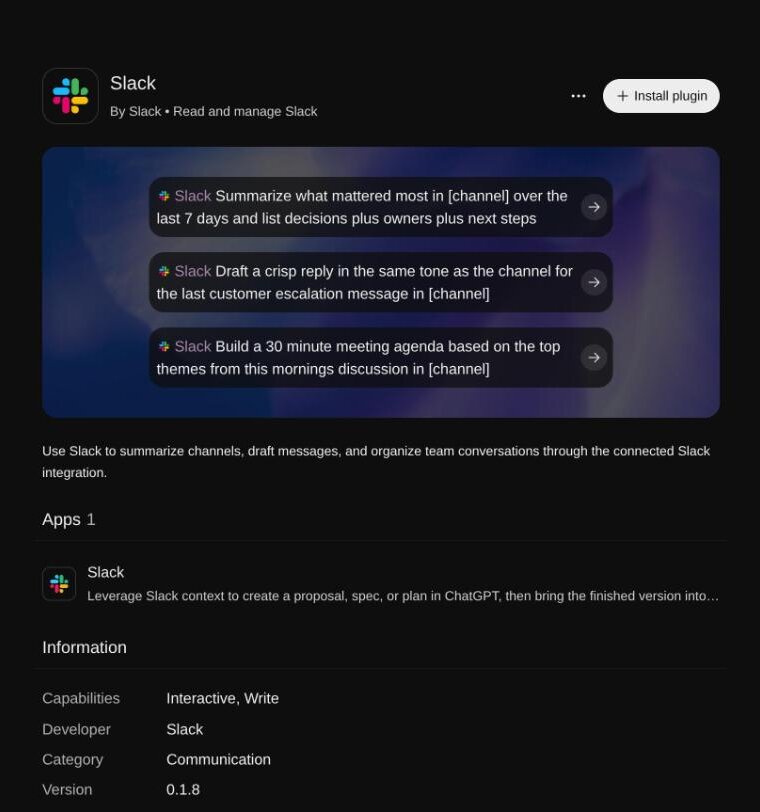
A plugin marked Desktop only needs the ChatGPT desktop app and won't work on chatgpt.com.
3. Connect your account
- If ChatGPT asks, click Connect.
- A sign-in window opens for that app. Sign in with the account you use for work.
- Check what it's asking for access to, then approve it.
For Google apps, approve everything Google lists. ChatGPT won't connect with only some of the permissions ticked. If you only want, say, Drive and not Gmail, choose Select fewer apps in ChatGPT before you get to Google's screen.
4. Use it in a chat
Ask for something that needs the app. Plain English is fine:
Find the last three emails from Sarah at Acme and tell me what she's waiting on from us.
ChatGPT uses an installed plugin when your request needs it, so you don't have to name it. If you want a particular one, type @ and its name, or click Plugins under the message box and pick it from the list.
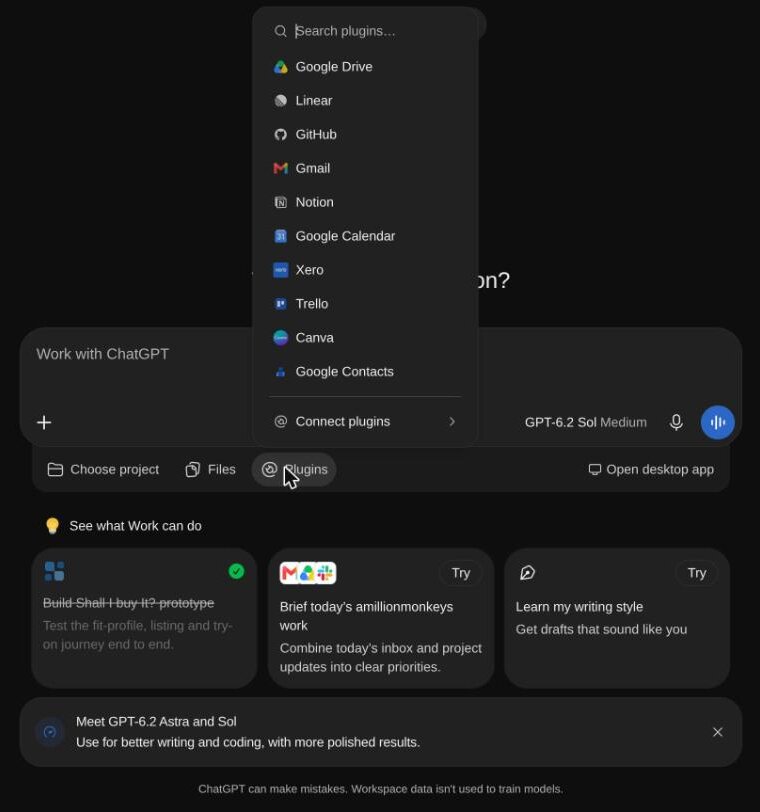
Plugins work in Chat and Work, the two modes at the top of the page. Chat is for quick questions. Work suits bigger jobs that pull from several apps.
5. Decide how often it checks with you
ChatGPT asks before it does anything you haven't allowed. You choose how often it checks under Settings → Plugins → Permissions:
- Always ask: it asks before reading anything or making changes.
- Allow read-only tools: it reads without asking, and asks before changing anything.
- Allow low-risk tools: it gets on with low-risk jobs and asks before anything bigger, such as sending an email or deleting a file.
- Allow all tools: it doesn't ask. Only some apps offer this.
Allow low-risk tools suits most people. Start with Allow read-only tools if you'd rather approve each change while you get used to it.
Things to try
Once a couple of apps are connected, try the jobs you'd normally do by hand:
- "What's on my calendar next week, and which meetings have no agenda?"
- "Find the latest version of the Acme proposal in Drive and summarise the pricing section."
- "Draft a reply to the last email from our accountant, answering her questions from the figures in the spreadsheet she sent."
- "Summarise what mattered in the #projects Slack channel over the last week, with decisions and who owns them."
- "Check Xero for invoices more than 30 days overdue and list who owes what."
- "Make a Canva social post from this blog post."
Check it worked
-
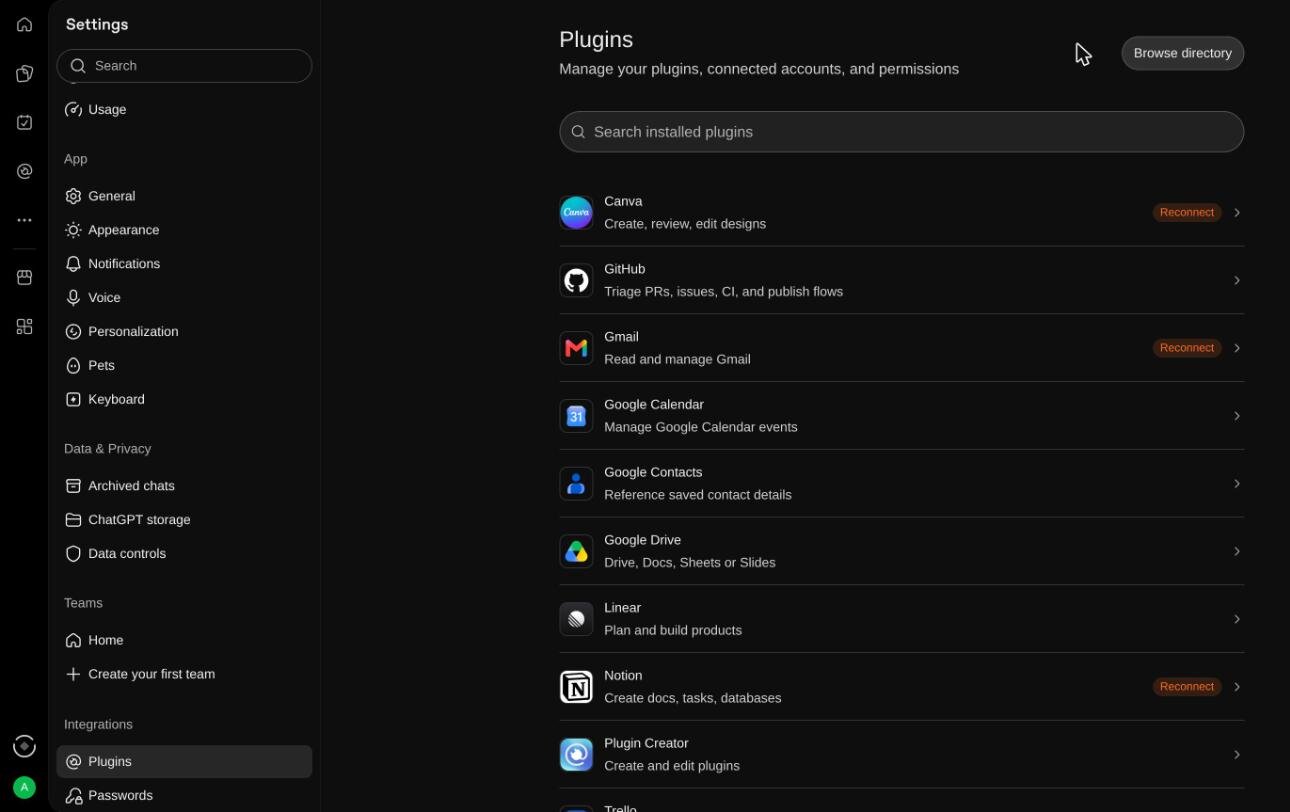
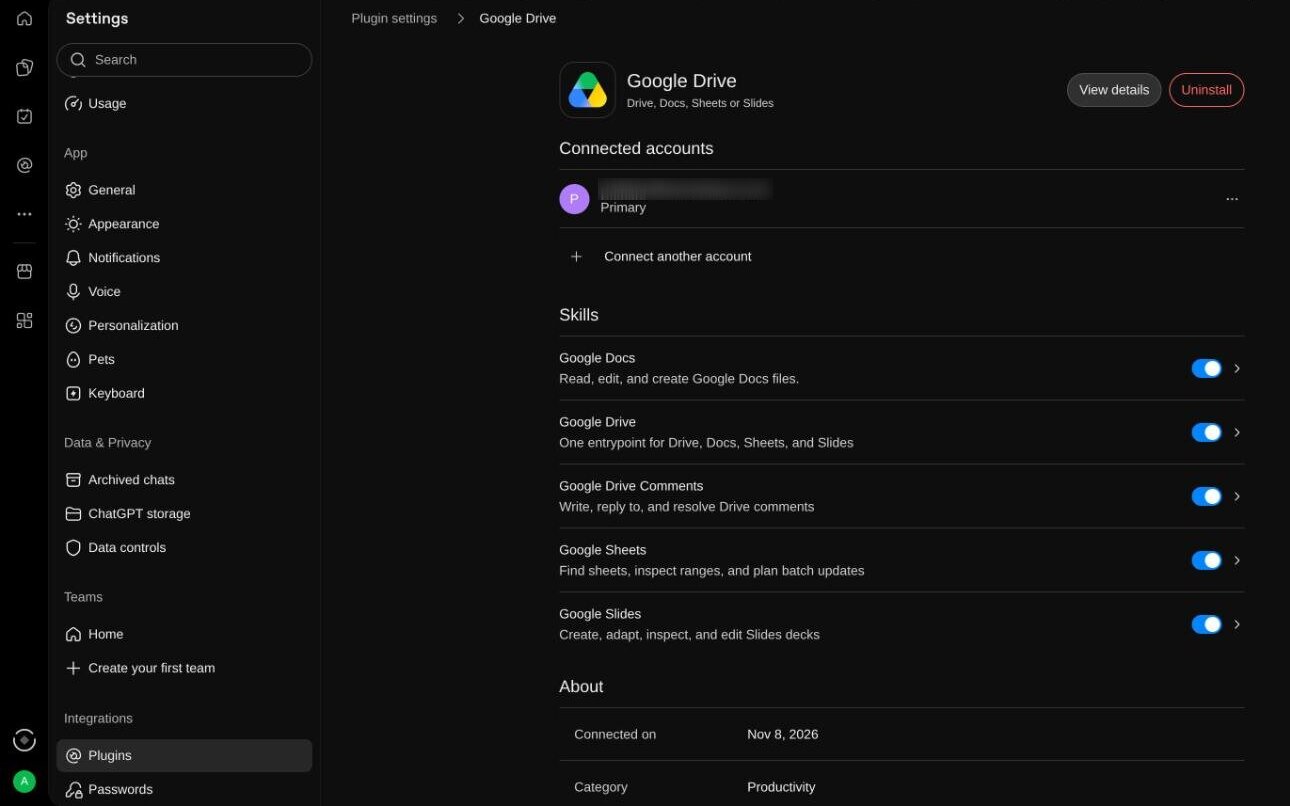
Open Settings → Plugins. The plugin should be listed.
-
In a new chat, ask something only that app can answer, such as
What's the most recent email in my inbox?orWhat's on my calendar tomorrow? -
ChatGPT should answer from the app and give you something you can check.
If it goes wrong
A plugin says Reconnect. The connection has expired. Open it in Settings → Plugins, click Reconnect and sign in again.
Google says ChatGPT needs all the permissions. Click Try again and choose Select all on Google's screen.
You can't find a plugin. It may not be offered on your plan or in the UK yet. On a work account, ask whoever manages ChatGPT whether it's switched on for your team.
It's using the wrong account. Open the plugin in Settings → Plugins. Under Connected accounts, use Connect another account, or disconnect the wrong one from its ••• menu.
ChatGPT doesn't use the plugin. Name it in your request with @, or pick it from Plugins under the message box.
Next steps
If you use Claude as well, it has plugins too: Connecting Claude to your apps.
If there's a dull job that means checking three apps and pasting the results into a fourth, it may be worth building properly. We build tools that do it.
The short version
- Click Plugins in ChatGPT's sidebar.
- Open the app you want and click Install plugin.
- Click Connect, sign in and approve the access.
- Ask for what you want in a chat, or type @ and the plugin's name.
- Set Settings → Plugins → Permissions to Allow low-risk tools.
Newsletter
One useful AI thing a week.
A short email on actually getting work done with AI. What we've tried, what worked, what didn't. No hype, unsubscribe whenever.