
Guide
Letting Claude use your browser
Install Claude in Chrome, open the side panel and let it click, type and fill in forms for you. Set up in minutes, with ideas for jobs to hand over.
What you'll end up with
Claude in a side panel next to whatever you're looking at in Chrome. You ask it to do something, and it gets on with it in your browser: opening pages, clicking, typing, filling in forms and moving between tabs. It uses the logins you already have, so if you're signed in to a site, so is Claude.
Who it's for, and what you need
Anyone who loses time to websites: forms that ask for things you've already told someone, reports you have to dig for, prices you have to check across five shops.
You need:
- A paid Claude plan (Pro or above). Claude in Chrome isn't included on Free.
- Google Chrome on your computer.
- About 10 minutes.
What it costs: nothing on top of your plan. UK prices are in Setting up Claude properly. Browsing uses your allowance faster than chatting, so long jobs can bring you closer to your limit.
Why it matters
A lot of dull admin happens in a browser, on sites that don't connect to anything else. Until recently, getting AI to help meant copying everything into a chat and copying the answer back out. Browser use skips that: you describe the job, and Claude does the clicking.
It isn't quick. A long form can take Claude ten minutes. But you're not the one sitting there doing it.
The steps
1. Add Claude to Chrome
- Open the Claude extension in the Chrome Web Store.
- Click Add to Chrome.

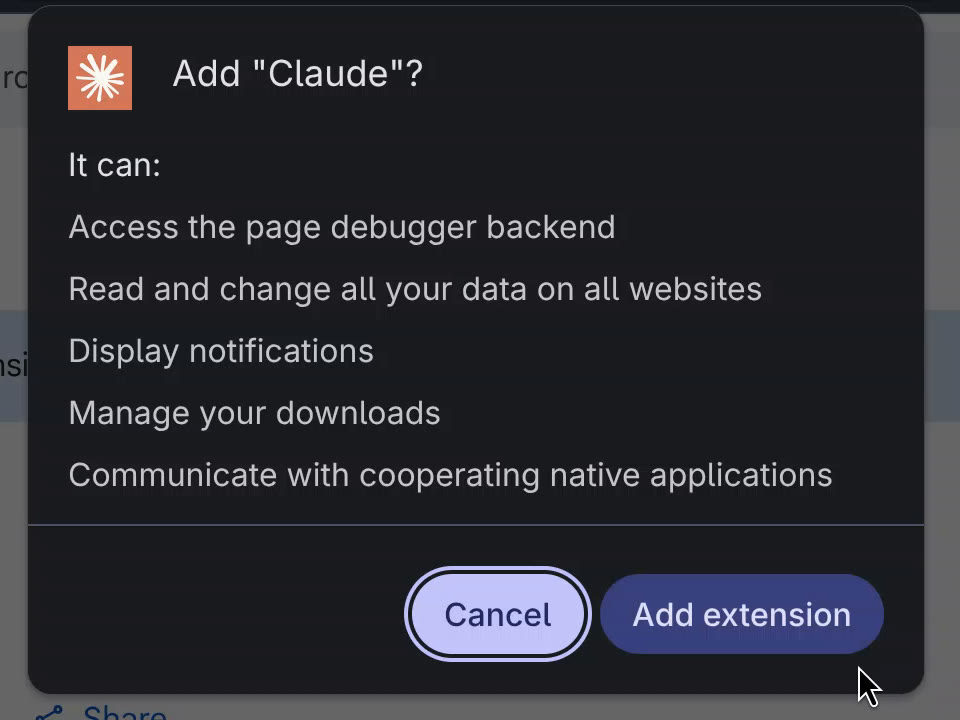
- Chrome lists what the extension can do. Click Add extension.
2. Connect your Claude account
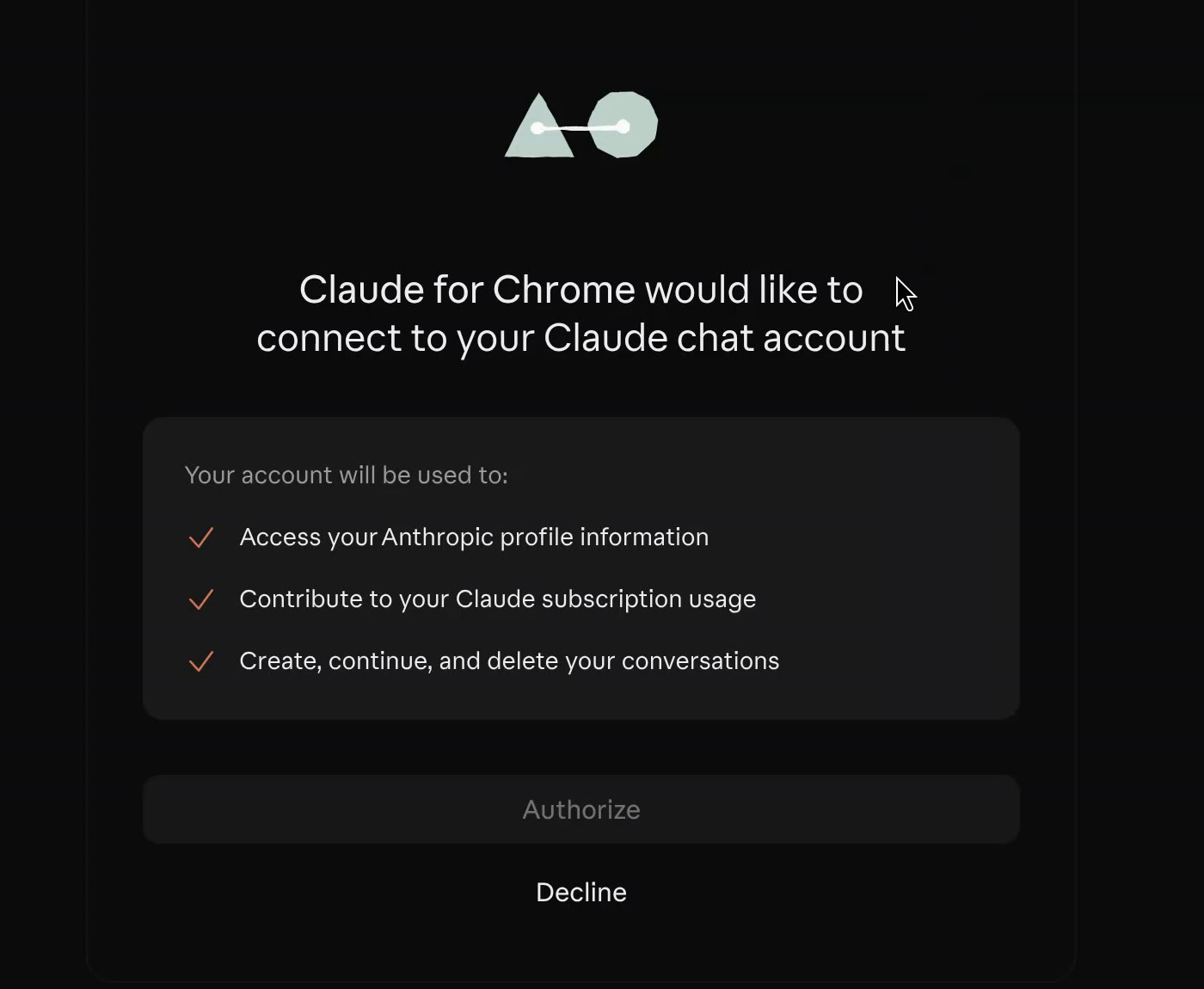
A Claude tab opens asking to connect Claude for Chrome to your account. Check it shows the account you use, then click Authorize.
3. Open the side panel
- Click the puzzle-piece icon in Chrome's toolbar and click the pin next to Claude, so its icon stays in the toolbar.
- Click the Claude icon. The side panel opens on the right.
- Read the Before you start notes and click I understand, then Next through the short tour.
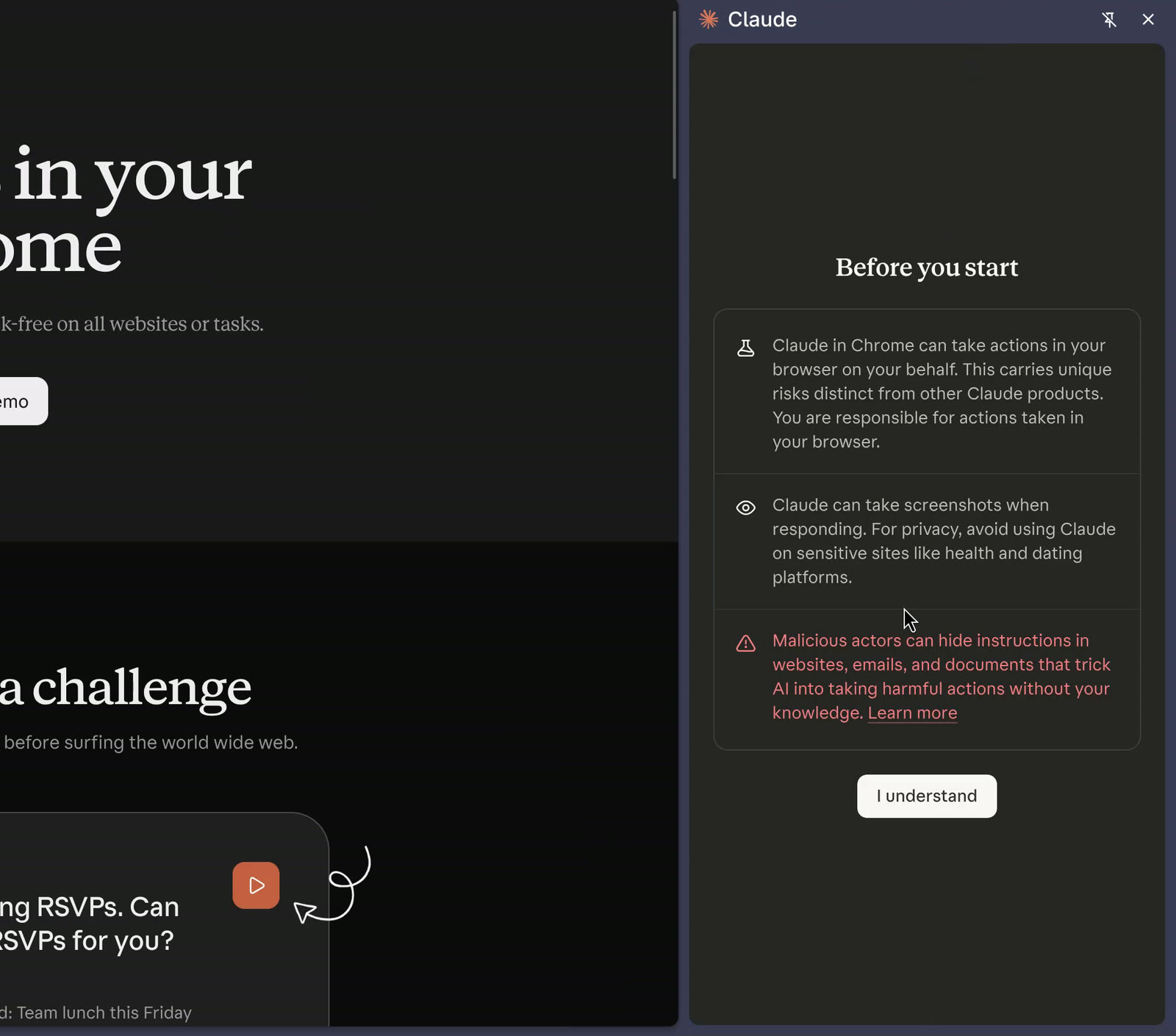
That's it. The panel stays open as you move between tabs.
4. Ask it to do something
Go to the site you want to work on, type what you want in the panel, and press enter. Plain English is fine. You don't need special wording, because Claude works out what you mean.
The first time Claude works on a site, it asks for permission. Choose Allow all for this website for sites you'll use again, or Allow this time only.
The menu under the message box sets how often it checks with you. Automatically approve is the default: Claude gets on with the job and a safety check reviews each step. Switch to Manually approve if you'd like to OK each click while you get used to it.
Claude won't buy anything, create accounts or type in card numbers, and it hands back to you at CAPTCHAs. So when a job ends with a payment, Claude does the legwork and you click the last button.
Things to try
Once it's set up, try it on the browser jobs you put off. Plain requests work fine. A few ideas:
- Find a figure in your accounting software: "What was our turnover for October?"
- Get a car insurance quote on a comparison site using the policy you already have.
- Find the best price for something across different shops, in your size or spec.
- Fill in a long form using details from a document or another site you're signed in to.
- Pull numbers off a dashboard that has no export button and put them in a table.
- Check your own website for out-of-date pages, old prices and broken links.
- List the newsletters and promotional emails in your inbox, grouped by sender.
- Compare suppliers, venues or products open in several tabs.
Check it worked
- Click the Claude icon in the toolbar. The side panel should open with a message box.
- On any site, ask:
Summarise this page in three bullet points.Claude should ask for permission to use the site, then answer.
If it goes wrong
There's no Claude icon in the toolbar. Click the puzzle-piece icon and pin Claude. If it isn't listed, the extension didn't install. Go back to step 1.
It asks you to sign in to Claude. Click the icon and sign in with your Claude account. If you have more than one account, check it's the paid one.
It stops at a login or a CAPTCHA. Do that bit yourself, then tell Claude to carry on.
It's slow. It is slower than doing it yourself. Start the job, get on with something else, and come back.
It goes to a site you didn't expect. Stop it and ask again, naming the site you want it to use.
Next steps
If you use ChatGPT too, it can do the same: Letting ChatGPT use your browser.
If there's a browser job you hand to Claude every week, it may be worth building properly. We build tools that do it.
The short version
- Add Claude from the Chrome Web Store.
- Click Authorize to connect your Claude account.
- Pin the extension and open the side panel.
- Go to the site, say what you want, and let it get on with it.
Newsletter
One useful AI thing a week.
A short email on actually getting work done with AI. What we've tried, what worked, what didn't. No hype, unsubscribe whenever.